
Getting started with Narrafix Studio
Narrafix Studio is the browser-based workspace where everything from Narrafix’s Auto-Cut and Proofing modules comes together. It’s designed for one purpose: to make proof editing as simple, fast, and intuitive as possible - no DAW, no complexity.
What Narrafix Studio is for
Narrafix Studio is not a full DAW - it’s a dedicated proof editing tool for audiobook production.
After Narrafix automatically cuts and proofs your audio, you can use Studio to:
- Review Auto-Edit and flagged deviations by Auto-Proofing
- Fine-adjust editing like pauses, fades, or breaths where needed
- Add proofing markers, comments or notes directly in the timeline (also works without activated Auto-Proofing)
- Finalize the audio for delivery or export
This replaces the need for manual fine editing in complex audio software and lets proof editors do all final checks in one pass.
Follow along live with Narrafix Studio 🎧
To get the most out of this guide, we recommend opening Narrafix Studio and following along as you read.
- If you already have an account, open one of your projects.
- If not, you can use our live demo - no sign-up required.
Main workspace overview
When you open Narrafix Studio, you’ll see three key areas:
- Proofing Section (top) — lists detected reading errors and text deviations with timestamps and script excerpts.
- Wave Editor (center) — shows the full edited audio; you can play, pause, zoom, and make fine adjustments.
- Script Section (bottom) — displays the original PDF script aligned with the audio for direct comparison.

-
Everything is synchronized: clicking on the arrows in a paragraph in the script or a proofing entry takes you straight to the corresponding point in the waveform.
-
Resizeable: Each section can be resized to your convenience by hovering and clicking to the boundaries of each section.
- Review results: Once you open up Narrafix Studio, you will see all automatically generated Cuts and Markers. You can review, modify and delete any of these and also add new ones.
👉 Let's go through the sections one by one:
1. Proofing Section
The Proofing Section is your command center for reviewing what Narrafix detected automatically during the proofing process - or you or your collaborators have added later on. It lists every potential deviation or reading inconsistency between the recorded audio and the supplied script.

What you see (left to right)
- Timestamp — the exact position of the deviation in the audio timeline.
- Page number — the page number in the original script for reference.
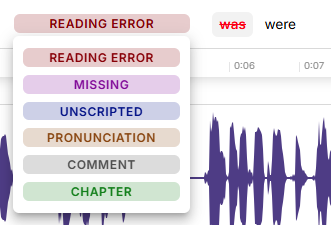
- Category — The category of the issue (e.g. Reading Error, Missing, Comment, etc...)
- Spoken text — what the narrator actually said.
- Expected text — the corresponding line in the script.
- Difference highlights — visual indicators that show which words differ (e.g., omitted, added, or substituted).
What you can do
- Jump directly to any entry by clicking it — the waveform and script view scroll to that exact spot.
- Create, modify or delete proofing markers.
-
Add comments to clarify if something should be corrected, kept, or double-checked.

-
Categorize proofing results as “Reading Error,” “Pronunciation,” or “Comment”
-
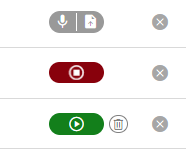
Add Audio markers (voice annotations): click the microphone icon 🎙️ to record a short spoken note (e.g., demonstrating correct pronunciation). These are embedded directly into the timeline and can be played back by collaborators.
This section helps you move quickly through potential problem areas without having to manually scrub through hours of audio.
-
Wave Editor
The Wave Editor is the heart of Narrafix Studio. It displays the entire processed audio file visually, allowing you to listen, inspect, and fine-tune any detail.

What you see (top to bottom):
- Proofing marker flags in timeline corresponding to detected script deviations.
- Marker flags from Auto-Cut or human editors in Studio (where edits occurred) in the line below.
- A waveform timeline showing amplitude and timecode.
-
A transcript line beneath the waveform showing recognized words for orientation.
Playback & navigation
- Click anywhere on the waveform to start playback from that point.
- Use the spacebar to play/pause quickly.
- Zoom in/out for detailed or broad overviews.
-
The playback cursor and all sections stay synchronized as you navigate.
Editing tools (left to right)

If you select a passage in the waveform with your mouse and dragging the selection accordingly, you can do the following edits and refinements in the audio:
- Increase/Decrease volume of selection
- Silence unwanted noises with a single click.
- Create or adjust fades to handle breath transitions or joins
- Remove unwanted fragments or sections in audio
If you move the playhead to a desired spot (no region selection), you can:
- Add or remove pauses (e.g., 0.2s or 0.5s) to smooth pacing.
-
Adjust waveform playback view: toggle between playhead always centered or page-flip view.


-
Show Edits: toggle “Show Edits” to visualize what Narrafix or any collaborator cut. Red segments show removed material, which can be restored or adjusted manually if needed.
Modifying audio edits
Once you have "Show Edits" enabled, you can review and modify all the audio edits done by Narrafix or anyone using Narrafix Studio.
By clicking on the arrows on a cut, you can expand and see the audio fragemnts that have been taken out either by Narrafix or an human editor. Listen back or modify them or restore them by simply clicking on the "x" next to the Cut-marker flag.

Also, you can review, modify or remove any other editing action with ease in the same way.

Adding markers, section marker
You can place markers anywhere on the waveform for proofing or collaboration:
- Text markers: add comments like “Check emphasis here” or “Correct name pronunciation.”
The Wave Editor makes it easy to do everything you would normally do in a DAW during the final proofing pass — but directly in the browser, with no exports needed.

3. Script Section (bottom)
The Script Section displays the original PDF script in full alignment with the waveform and proofing data and also the annotations inside the PDF (if any).

What you see
- The full original PDF layout of the script as provided (not a reflowed/parsed text version).
- Highlighted text segments that match the current playback position (indicated with the grey line at the left side of the page)
-
Optional annotations imported from the original PDF (such as director’s notes, character tags, or comments). The annotations bar can be showed or hidden with the corresponding button


What you can do
-
Click on any paragraph or word in the script to jump to that exact point in the audio
-
Use search to locate any word or phrase in the PDF — ideal for cross-checking repeated names, terms, or dialogue.
Download, Collaboration and sharing
You can download the WAV-files of the project simply by clicking on the "Download"-Button. It will then create a ZIP-Files containing all files of the project. If you wish to download files individually, you can do so outside of Narrafix Studio on the "Project"-page and click on the individual download symbol in the file list.
Once your review is complete, click “Share project” in the top-right corner.
You can send secure, read-only or editable links to:
- Proof editors – full access to edit and comment
- Narrators – read-only view with pickups and notes
- Producers or studios – comment access only
All comments, annotations, and audio notes stay linked to the exact part of the waveform, making feedback clear and traceable.
In all sharing options, it is not possible for collaborators to see other projects or any account credentials with only the secret link. It only gives access to the particular project alone that can be revoced by disabling sharing again.
✅ In summary:
Narrafix Studio is where proof editing, collaboration, and final review happen — all in your browser.
You can:
- Check, adjust, and finalize edited audio
- Leave written or recorded feedback directly in the timeline
- Work collaboratively without downloads or exports
Narrafix Studio is free to use with every processed project and saves automatically — so you can focus entirely on what matters: the story and performance.